How to Fix Website Accessibility Errors in 2025
Published • 10 min read
By Clunky AI editors
Practical website readiness guidance for founders using AI builders. We do not invent customer results, scan data or proof.
About the editors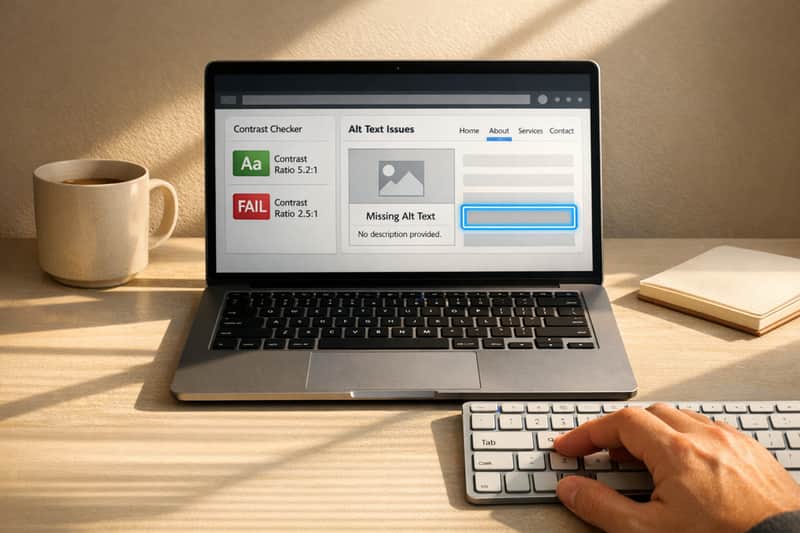
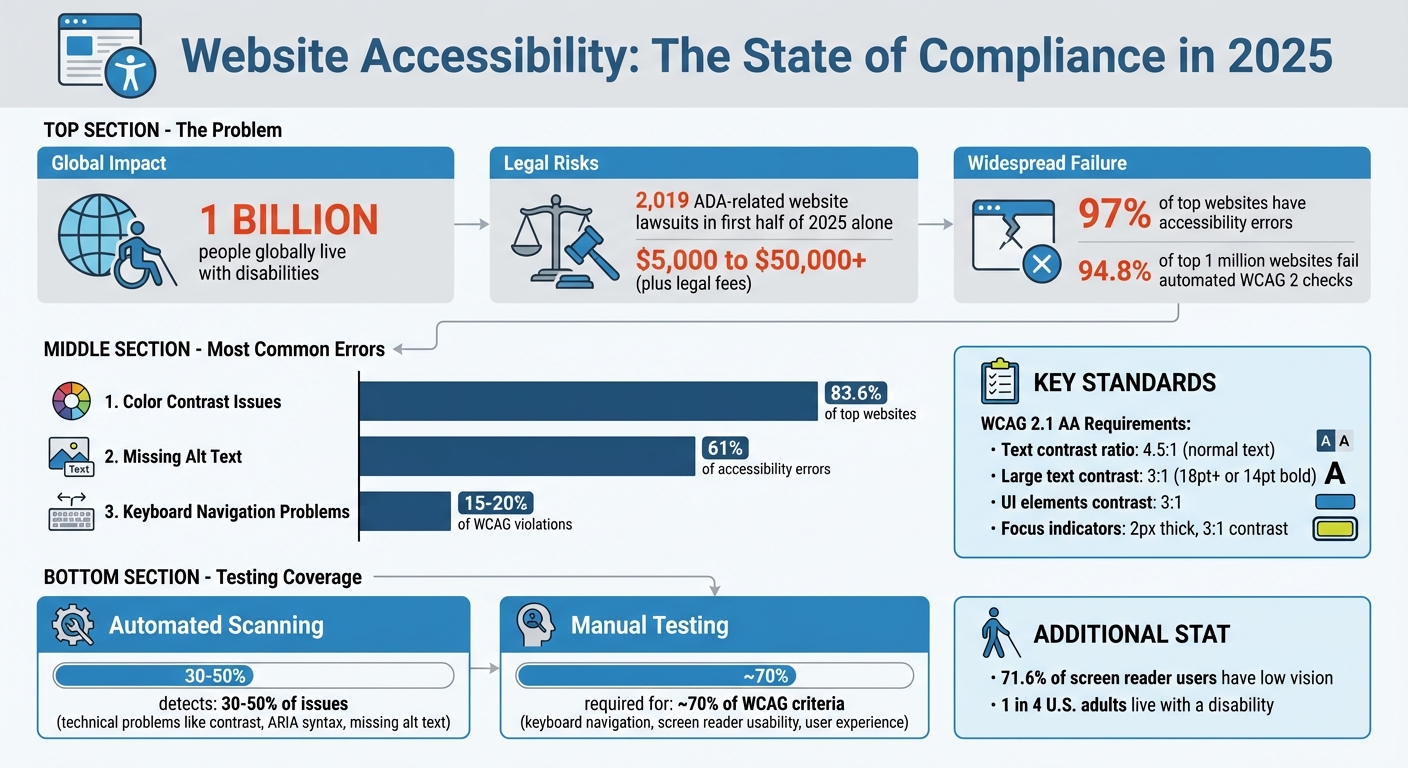
Accessibility matters more than ever. In 2025, failing to make your website accessible isn't just risky - it can cost you big. With over 1 billion people globally living with disabilities, businesses that ignore accessibility face legal challenges, financial penalties, and lost customers. The numbers are clear: ADA-related website lawsuits hit 2,019 in the first half of 2025 alone, and settlements can range from $5,000 to $50,000, with legal costs climbing even higher.
To avoid these pitfalls and improve user experience, focus on WCAG 2.1 AA standards, which emphasize making websites perceivable, operable, understandable, and robust. Common errors like low color contrast, missing alt text, and keyboard navigation issues affect over 97% of top websites today. Tools like CLUNKY.ai’s dCLUNK™ can help identify these issues, but manual testing is equally important to ensure compliance.
Here’s how to fix the most frequent problems:
- Color Contrast: Ensure text meets contrast ratios of 4.5:1 for normal text and 3:1 for large text.
- Alt Text: Add meaningful descriptions for images and leave decorative images empty (
alt=""). - Keyboard Navigation: Ensure users can navigate your site with just a keyboard and avoid "keyboard traps."
Regular scans and manual testing are key to maintaining accessibility. By addressing these issues, you not only reduce legal risks but also open your website to millions of potential users.
Website Accessibility Statistics and Common Errors 2025
Finding Accessibility Errors with CLUNKY.ai
How dCLUNK™ Identifies Accessibility Issues
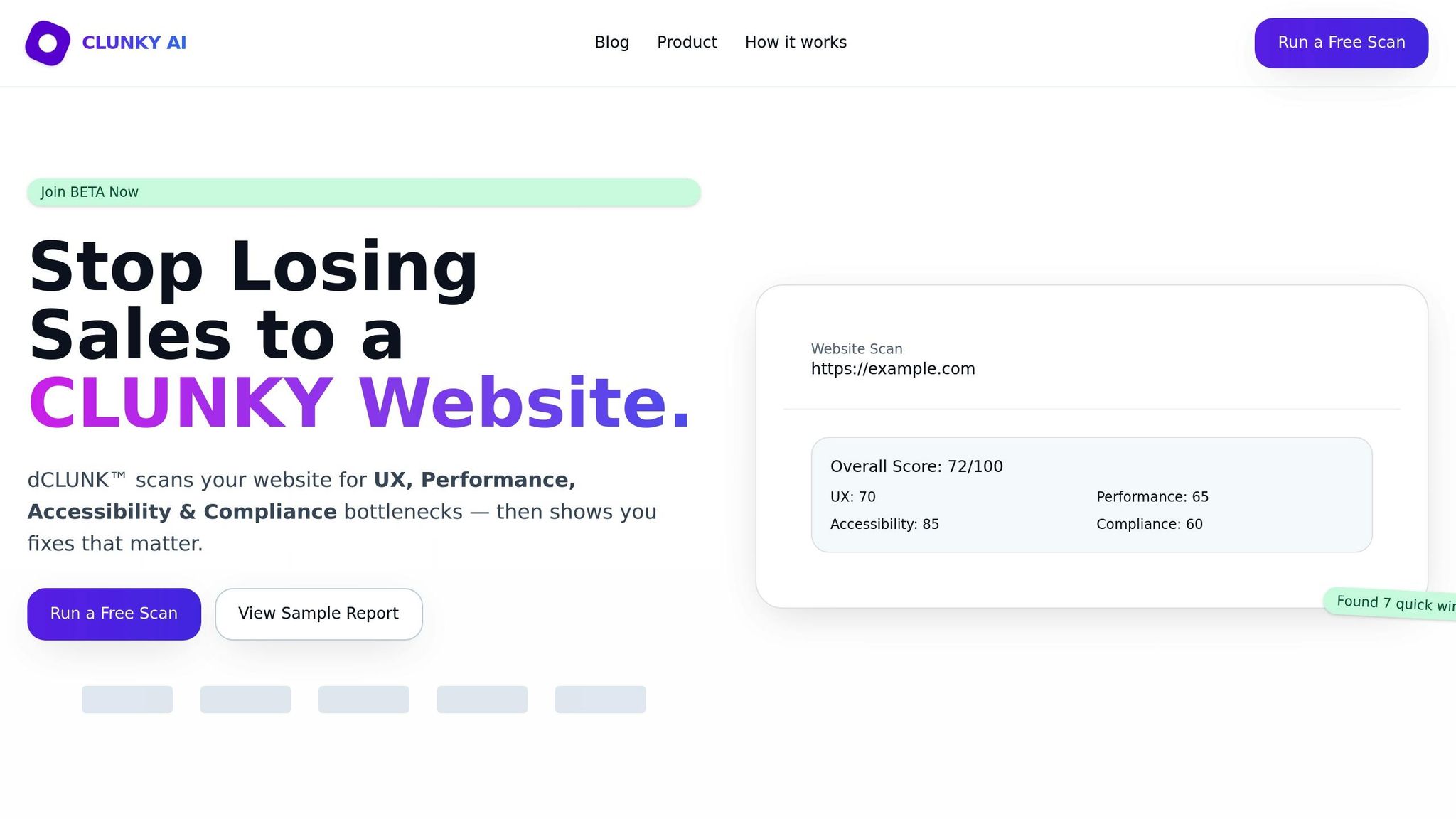
CLUNKY.ai's dCLUNK™ tool is designed to automatically scan your website for code-level accessibility issues. It evaluates your site against the POUR principles (Perceivable, Operable, Understandable, and Robust) that form the foundation of WCAG 2.1 AA standards.
During a scan, dCLUNK™ looks for common problems like missing alt attributes on images, low color contrast (flagging anything below a 4.5:1 ratio for normal text and 3:1 for large text), and unlabeled form fields that can confuse users relying on screen readers. It also ensures that interactive elements - like menus, buttons, and modals - can be navigated using just the keyboard, specifically the Tab, Enter, and Esc keys.
While automated scanning can identify between 25% and 40% of WCAG 2.1 AA criteria through code analysis, it's a crucial first step in addressing accessibility gaps. Considering that 94.8% of the top one million websites still fail automated WCAG 2 checks, this initial analysis is an essential part of the remediation process. The insights from this scan help you better understand and act on the findings in your dCLUNK™ report.
Reading Your dCLUNK™ Reports
Once dCLUNK™ completes its scan, it generates a detailed report that provides actionable, prioritized guidance for fixing accessibility issues. The report organizes findings into three categories:
- Errors – Critical problems that need immediate attention
- Alerts/Warnings – Potential issues requiring manual review
- Features – Accessibility elements that meet standards
Each error includes the corresponding WCAG criterion, highlights the problematic code, and offers specific recommendations for fixes. For instance, if a form input is missing a label, the report will flag that field and suggest adding a for and id attribute pairing. Visual overlays or icons are used to pinpoint issues directly on the webpage.
Prioritization is essential. The report ranks issues based on their impact on users:
- Priority 1 tackles critical functionality blockers, like keyboard traps or missing form labels.
- Priority 2 addresses comprehension barriers, such as low contrast or missing alt text.
- Priority 3 focuses on technical details, like incorrect heading structures or missing language attributes.
This approach ensures that the most urgent problems are resolved first, improving usability while reducing the risk of legal complications.
While automated scans are a great starting point, they only cover part of WCAG 2.1 AA compliance. Manual testing remains a necessary step to achieve full accessibility.
sbb-itb-641714f
7 Accessibility Issues That Fix 80% of Your WCAG Problems (Do These First!)
How to Fix Common Accessibility Errors
Here are practical steps to address some of the most frequent accessibility problems uncovered during earlier scans.
Fixing Color Contrast Issues
Color contrast problems impact 83.6% of the top one million websites, making it the most common accessibility issue online. Fixing it isn’t complicated once you know the rules: regular text must have a contrast ratio of 4.5:1, while large text (18pt or larger, or 14pt bold) and UI elements like form borders and icons need a 3:1 ratio.
To check your color contrast, try tools like Chrome DevTools' built-in swatch tool, WebAIM Contrast Checker, or WAVE. These tools help ensure your colors meet WCAG standards.
If your brand colors don’t pass the test, small tweaks in lightness (about 5% to 15%) usually do the trick without altering your brand identity. For text over images, you can use a semi-transparent dark overlay (e.g., rgba(0, 0, 0, 0.6)) or place a solid background behind the text to maintain proper contrast.
Keep in mind that 71.6% of screen reader users have low vision, so they rely heavily on contrast. Don’t forget to check placeholder text, as default browser styles are often too light to meet the 4.5:1 standard. If your site supports light and dark modes, test both themes - colors that work in one mode might fail in the other.
Writing Alt Text for Images
Missing alt text is responsible for 61% of accessibility errors on the web. Alt text should clearly describe an image’s content or purpose in a concise manner, ideally under 125 characters, to avoid being cut off by screen readers.
The description should match the image’s context. For instance, on a pet adoption page, you might write, "Golden retriever puppy playing with a red ball." However, if the same image appears in a testimonial section, the description might be, "Customer testimonial from Sarah Johnson". For functional images like buttons or icons, describe their purpose, such as:
<a href="/search"><img src="glass.png" alt="Search"></a>
For decorative images, use an empty alt attribute (alt="") so screen readers can skip them. This ensures they don’t distract users with unnecessary details. Avoid starting alt text with phrases like "image of" or "photo of" - screen readers already indicate the element type. Ending descriptions with a period can also improve readability.
For complex visuals like charts or infographics, take a two-step approach: provide a brief summary in the alt attribute and include detailed explanations in nearby text, a data table, or through aria-describedby. If you use AI to generate alt text, always review it to ensure it accurately reflects the image’s purpose.
Fixing Keyboard Navigation Problems
Keyboard navigation issues account for 15% to 20% of WCAG violations. These problems often stem from a few simple oversights. Start by using native HTML elements like <button>, <a>, and <input>, which come with built-in keyboard support and focus management.
Make sure the tab order matches the visual flow - typically top-to-bottom and left-to-right. This flow is determined by the HTML source order, not CSS, so avoid layout techniques that visually rearrange elements without updating the DOM order. Such mismatches can confuse keyboard users.
"If users can't navigate and operate your site with a keyboard alone, it fails WCAG compliance and excludes millions of users."
– TestParty
Don’t remove default focus outlines (e.g., using outline: none) unless you replace them with a visible, high-contrast alternative using CSS pseudo-classes like :focus or :focus-visible. WCAG 2.2 specifies that focus indicators must be at least 2 pixels thick and have a contrast ratio of 3:1 against surrounding elements. The :focus-visible pseudo-class is especially useful, as it only shows focus indicators for keyboard users.
For modals and dropdown menus, shift focus to the first interactive element when they open and trap focus within the modal until it’s closed. Ensure users can dismiss modals with the Escape key and that focus returns to the trigger element after closing. Finally, manually test your site by navigating with just the keyboard - using Tab, Shift + Tab, Enter, Space, and Arrow keys - to identify any inaccessible elements or keyboard traps.
Apply these fixes and test thoroughly to ensure your site meets accessibility standards.
Testing Your Accessibility Fixes
To ensure your accessibility improvements are effective, combine automated tools with manual testing. While tools like CLUNKY.ai can identify technical issues, manual testing is essential to address the more nuanced, user-focused aspects of accessibility. Automated scans handle the objective 30% of WCAG requirements, but the remaining 70% relies on human insight and judgment.
Re-scanning with CLUNKY.ai
After every major update, plugin installation, or site redesign, run a fresh CLUNKY.ai scan to catch any new issues early. The dCLUNK™ tool specializes in spotting technical problems such as missing alt attributes, duplicate IDs, and insufficient color contrast - areas where automation excels.
Compare the latest scan results with your baseline to verify fixes. For instance, if your initial scan flagged 47 images without alt text and 12 contrast issues, your updated scan should show those numbers reduced to zero. Keep a record of both automated and manual testing results as part of your audit trail - this documentation can be crucial for legal or regulatory compliance. Remember, a perfect automated score is just the beginning. To achieve full accessibility, you’ll need to complement these scans with manual testing. For active websites, schedule automated scans monthly, while smaller sites may only need quarterly checks.
Manual Testing Methods
Manual testing is critical for addressing the 70% of WCAG guidelines that automation can't fully evaluate. Start by navigating your site using only the Tab, Shift + Tab, Enter, Space, and Arrow keys. If you encounter elements you can’t reach or get stuck in a "keyboard trap", you’ve identified a major usability barrier.
Next, test your site using a screen reader like NVDA (Windows) or VoiceOver (Mac). This ensures content is announced in a logical sequence and that dynamic updates - such as form error messages - are clearly communicated. While automated tools can confirm the presence of alt text, only a person can judge its usefulness. For example, labeling a button as "Submit Order" is far more effective than using a generic label like "image123.png."
| Testing Method | Issues Detected | Best For |
|---|---|---|
| Automated Scanning | 30–50% | Technical issues like color contrast, ARIA syntax, missing alt text, and structural HTML |
| Manual Testing | ~70% of criteria | Keyboard navigation, screen reader usability, focus management, alt text quality, and user experience |
Finally, zoom your browser to 200% and 400% to confirm that text remains readable without horizontal scrolling. Ensure focus indicators are easy to see, meet the 3:1 contrast ratio, and clearly highlight all interactive elements. These manual checks, combined with automated scans, provide a comprehensive approach to making your website accessible for all users.
Conclusion
Focusing on practical fixes and regular scans, your dedication to accessibility not only ensures compliance but also expands your reach. With the DOJ's 2024 final rule for ADA Title II establishing clear technical standards, it's evident that compliance has become a top priority for public entities and is increasingly relevant for private businesses too.
Tackling key issues like color contrast, keyboard navigation, and form labels, as outlined in this guide, can significantly reduce the risk of hefty statutory damages. In California, these damages can start at $4,000 per violation. Beyond legal protection, these improvements create a better experience for the 1 in 4 U.S. adults living with a disability. As Stefan Ivic highlights:
"Accessible design not only avoids legal risk but also enhances search rankings, usability, and trust, making accessibility a true business advantage".
Start with a free CLUNKY.ai scan to identify existing issues, and then prioritize addressing the most common barriers. Publishing an accessibility statement with clear contact details not only shows transparency but also provides users with a way to report problems before they escalate into legal challenges. Make it a habit to re-scan after every update to ensure your site remains accessible.
"Accessibility isn't about perfection – it's about progress." - Accessibility Innovations
Use CLUNKY.ai for ongoing scans and keep your accessibility statement updated to support continuous improvement.
FAQs
What’s the fastest way to get to WCAG 2.1 AA compliance?
To meet WCAG 2.1 AA compliance efficiently, focus on key areas first. Begin by adding alt text to all images, correcting color contrast issues, and ensuring keyboard navigation works seamlessly. Tools like WAVE or Google Lighthouse can help identify errors and highlight the most common accessibility failures. However, don’t depend entirely on automated tools - manual adjustments are crucial for tackling high-priority issues and ensuring your site aligns with accessibility standards.
How often should I scan and re-test my site for accessibility?
To keep your website accessible and compliant, it's a good idea to scan and re-test it on a regular basis. Aiming for quarterly checks or testing after major updates is a solid approach. Start with an initial audit to identify issues, prioritize fixing critical problems like missing alt text or poor color contrast, and then re-test after making updates. Staying up-to-date with changes in WCAG standards is also crucial for maintaining accessibility and meeting legal requirements.
What should I fix first to reduce ADA lawsuit risk?
If you're looking to minimize the risk of ADA lawsuits in 2025, start by addressing alt text for images. This is one of the most common issues cited in legal claims. Missing or poorly written alt text not only violates accessibility standards but also leaves your website vulnerable to legal action.
By ensuring every image includes clear, descriptive alternative text, you’re not just improving accessibility for users with visual impairments - you’re also taking a major step toward reducing your legal exposure. It's a simple yet crucial fix that can make a big difference.
AI-built site angle
Accessibility on AI-built sites: the 5 axe-core violations we see most
If you are building with Lovable, v0 or Bolt, start with the accessibility failures AI-generated components most often miss.
Read the deep diveHow this was checked
Clunky AI separates sourced facts, measured scan evidence and editorial judgement. We do not sell rankings or let rated companies pay to alter coverage.
Read the editorial policyExplore the six basics
Every Clunky AI article maps back to one or more of the questions a business site has to answer.
Related Posts
Tags AccessibilityResponsive DesignUser Experience
Category Website Compliance